
To use the Lightspeed eCom integration please proceed as follows:
-
Select the app from the Lightspeed eCom marketplace.
-
Click on the install button. You will now be redirected to your Lightspeed eCom store to login and grant us access.
-
After you have granted the permissions, you will be requested to authenticate. If you don’t have an account yet, please use the signup button to create one.
-
When the installation of the app is successful, you should see the Lightspeed eCom integration with the options you can use.
-
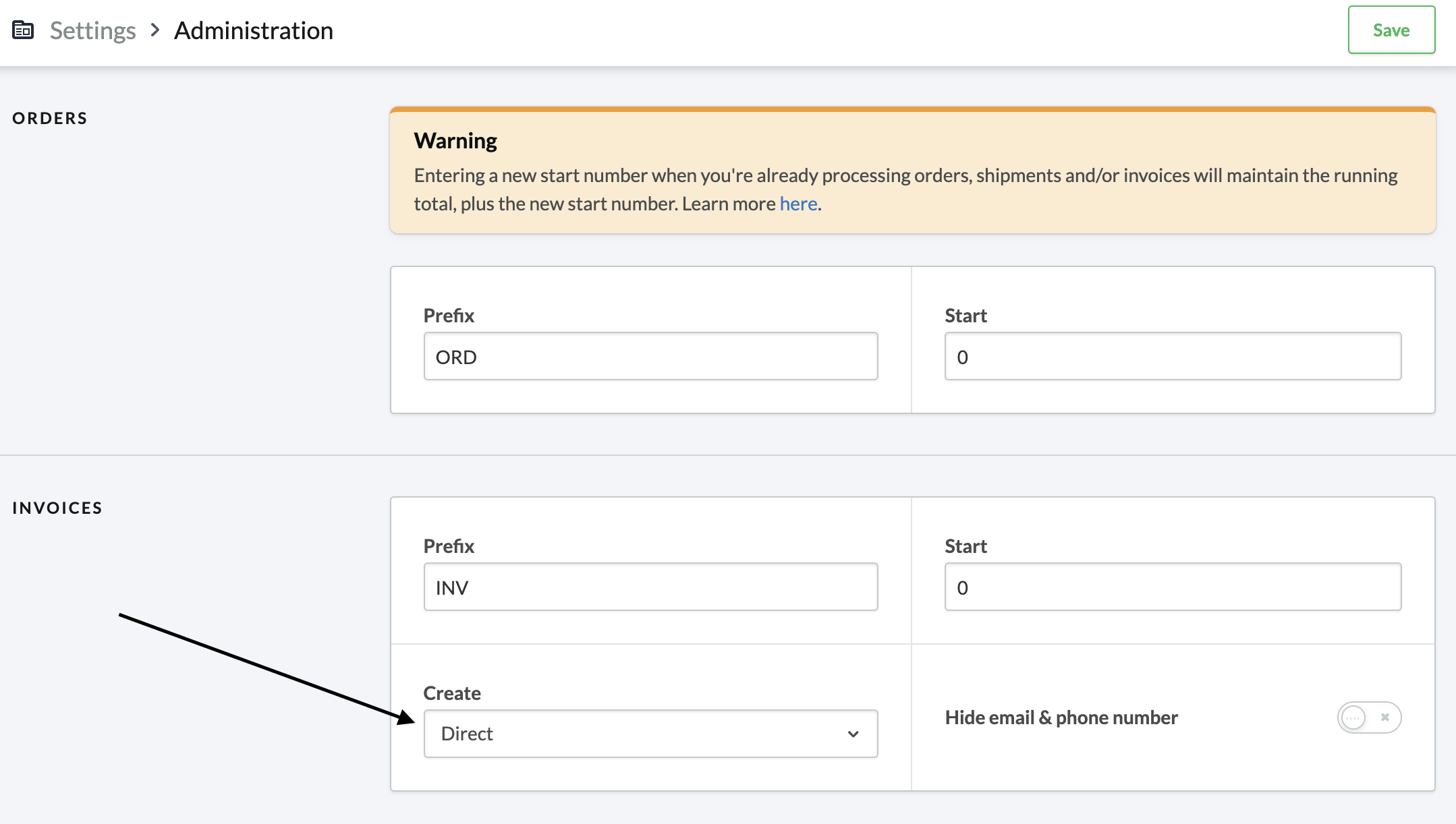
Invoice settings can be found in your Lightspeed eCom store back office. The invoice creation method should be set to
PaidorDirect. If theManualcreate method is set, the order state will not be updated automatically.
Figure 1. The invoice creation method setting in Lightspeed eCom store.
This is all that is necessary. The payment method’s name, description, etc. are now synchronized automatically to Lightspeed eCom. Make sure that you have selected your payment processor.
The order status in Lightspeed eCom is automatically updated based on the payment status of the order.
When a user is redirected to VR Payment, the payment status is initially set to PENDING.
Once the transaction reaches the FULFILL state, the payment status is updated to PAID.
Depending on the type of product in the order, the order is then marked either as ready to be shipped (for physical products) or ready for download (for digital products).
If the transaction is marked as DECLINED or VOIDED, the order status is set to CANCELLED.
This ensures that the buyer cannot reattempt the payment for the same order through their Lightspeed eCom account.

Lightspeed eCom updates the displayed payment methods directly from VR Payment. This means any payment method configured is automatically available in Lightspeed eCom. The names of the payment methods and their icons can be configured in the payment method configuration.
Lightspeed eCom is not updating the payment methods on each reload of the payment method selection page. As such you might need to restart the checkout process to see the updates.
Each payment method allows to have an additional payment fee (payment cost). The calculation of the fee depends on the total amount with a percentage of it or the fee can be a fixed amount. There must be at least one payment method configured otherwise no fee can be assigned to it.
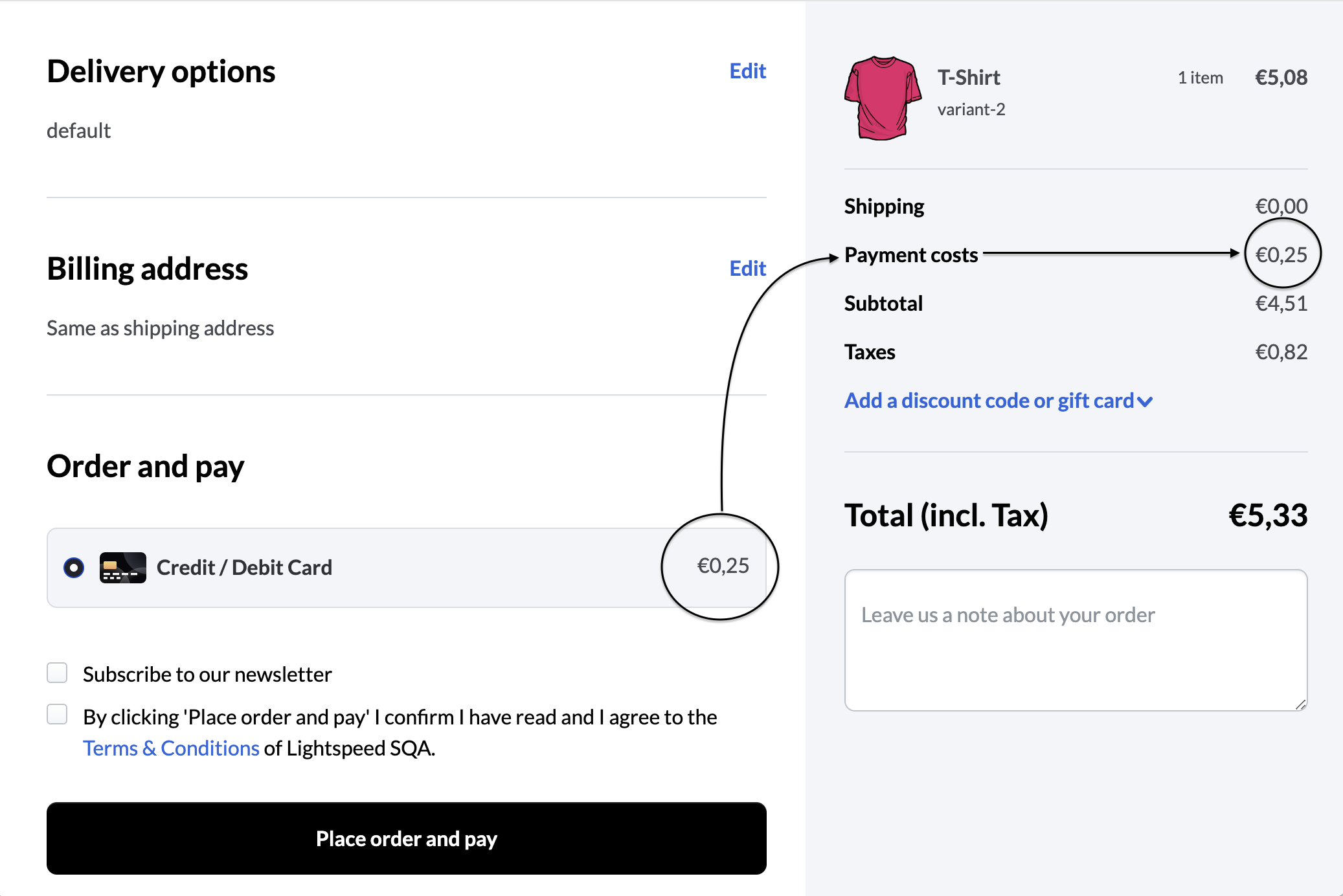
Figure 2. The payment method fee on the Lightspeed eCom checkout page.
|
Important
|
Payment Method Fees: Lightspeed eCom provides the ability to set fees for different payment methods. In the In the |
Gift cards are a popular and practical option—more personal than cash and an easy choice for any occasion.
You can take advantage of their popularity by making it simple for customers to purchase and redeem gift cards with your business, both in-store and online. You have full control over where gift cards are sold and how they can be redeemed.
Get started by configuring your gift card settings in your Lightspeed eCom store.
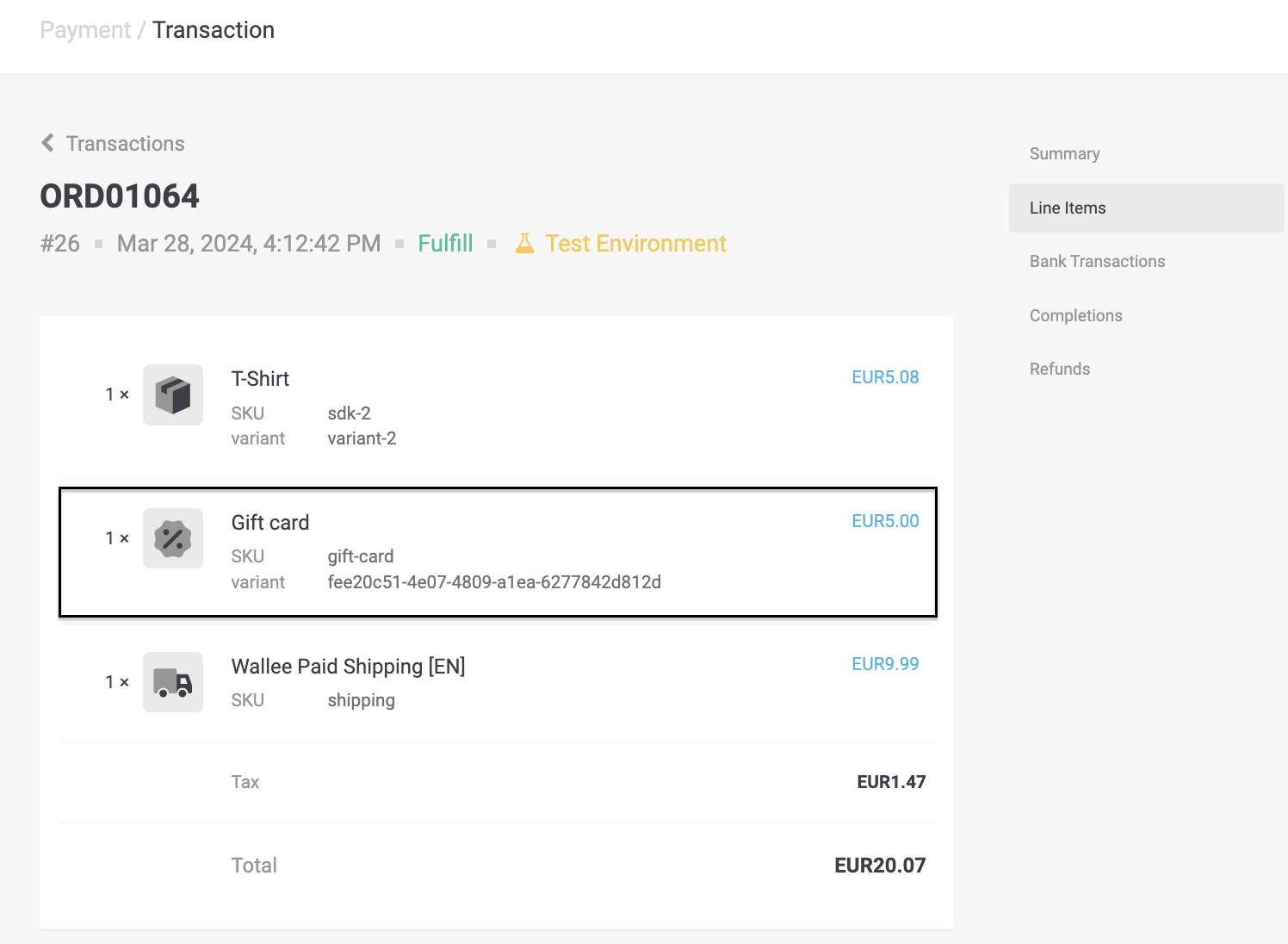
Figure 3. The purchased gift card on the Transaction Line Items.
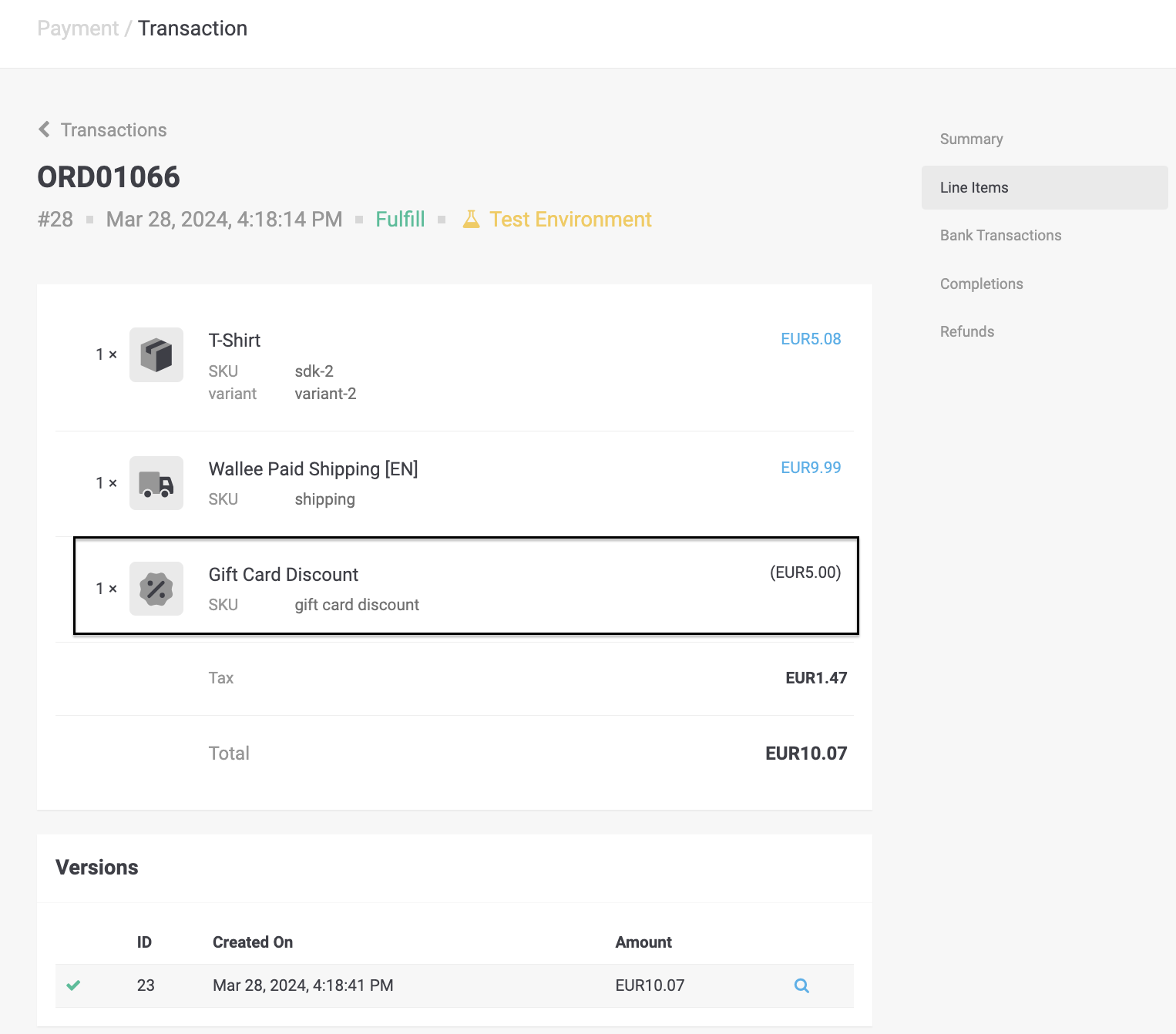
Figure 4. The applied gift card code on the Transaction Line Items.
|
Important
|
If your cart contains gift card products, your Lightspeed store must be configured for automatic invoice creation ( Without this setting, payments cannot be processed, and order creation will fail. Make sure to enable Required Action: To edit invoice settings in your Lightspeed eCom back office:
For more information on configuring invoice settings in Lightspeed eCom, consult the official Lightspeed eCom documentation. |
|
Warning
|
Gift Card Cancellations: When a customer begins a checkout using a gift card but then cancels the process, Lightspeed eCom may incorrectly mark the gift card as redeemed. This limitation is known, and Lightspeed eCom is currently addressing it. |
Currently, refunding a customer for a gift card they purchased is not supported in Lightspeed eCom store.
However, it is possible to refund your customer in Lightspeed eCom by:
-
Canceling the gift card
-
Creating a unique discount code
You have the possibility to refund already completed transactions, from the VR Payment.
In order to do so, open the completed transaction.
By clicking on Refunds the window for refunds will show.
|
Note
|
Ensure that the connector which processed this payment supports the refund feature. In order to check that have a look at the processor list and check the connector of a processor. |
You can carry out as many individual refunds as you wish until you have reached the quantity of the original order.